Photo Enhancer logoPhoto Enhancer
— / 1 free todayGet credits

AI PHOTO RESTORATION

Photo Restoration
Old photos, carefully cleaned.

Restore old photos with a workflow built around the original. Clean visible dust and fine scratches, refresh faded tones, or combine both treatments. Compare the restored copy with your source before downloading.

Scratch cleanupFaded tone refreshOriginal size · keep your scan
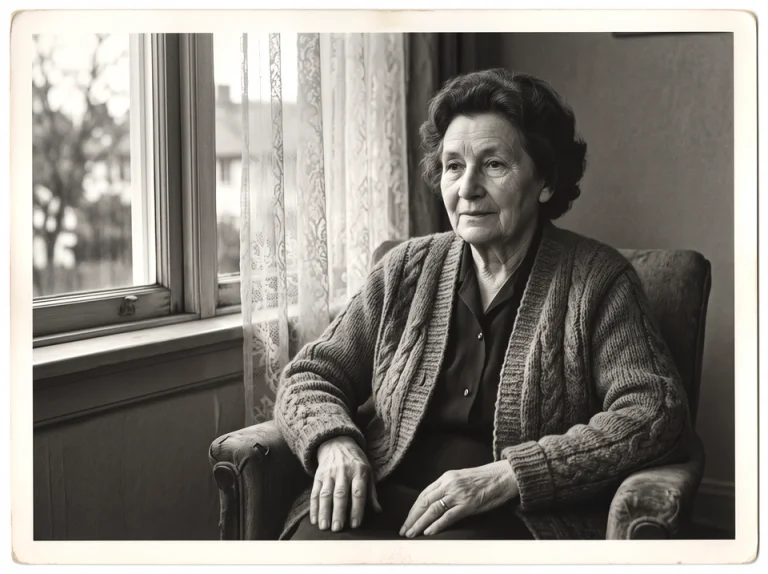
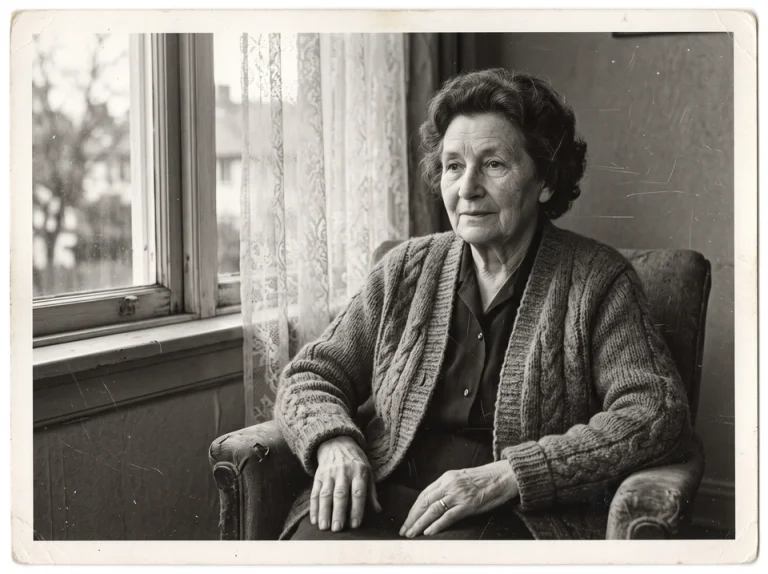
Scratched old portrait before and after photo restoration
OriginalRestored
Example processed with our restoration tool. Results vary.

Keep the original scan. Compare familiar faces, clothing and repaired areas before downloading.

Upload a photo

Choose an old photo and a treatment.

Drop your photo hereor choose a fileJPG, PNG or WebP · up to 10 MB
Restoration treatment

Upload a photo to confirm it fits your plan; the selected treatment’s exact cost is shown before processing.

Your plan and the source dimensions determine the available input. The cost is shown before processing; the output keeps the original size.

Checking processing cost…

Private image storageThree download formatsNo forced watermarks

How to restore old photos online

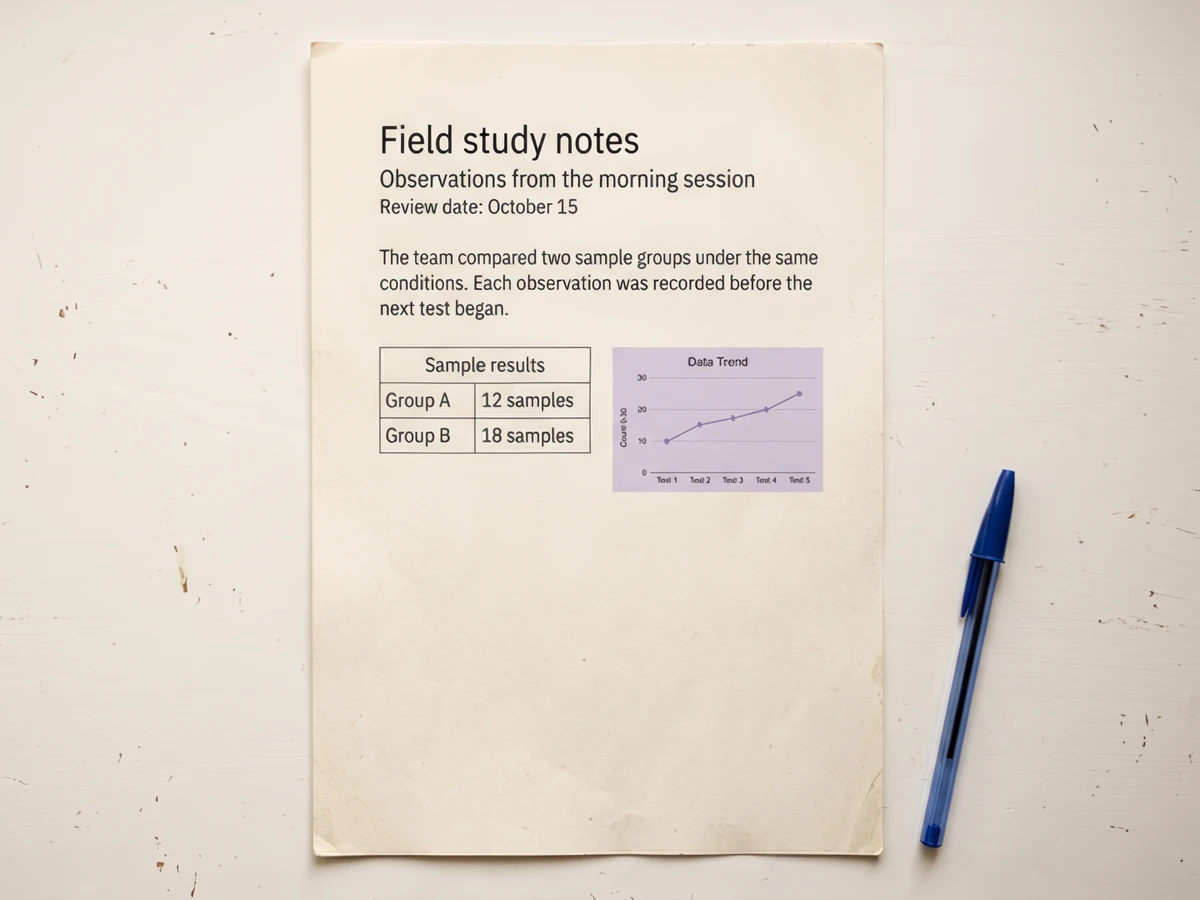
Photo Restoration interface: Choose a photo
Choose a photo
01

Prepare a clear digital copy

Use a flat, evenly lit scan when one is available. If you photograph the print with a phone, keep the camera directly above it and avoid flash reflections. Do not pull a fragile photograph from an album simply to use this tool — work from a safe digital capture and keep the original item intact.
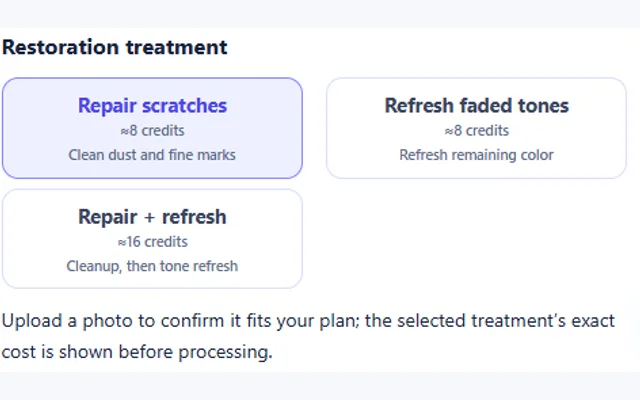
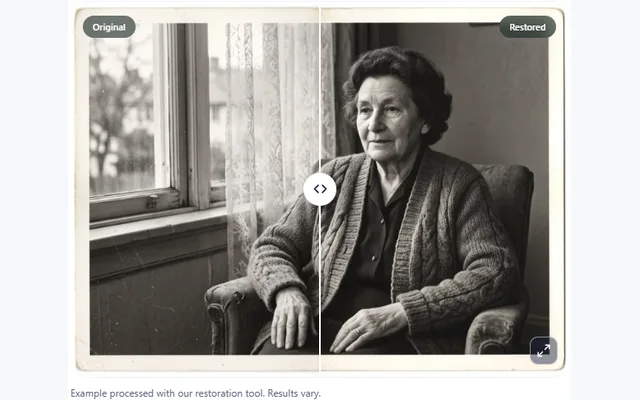
Photo Restoration interface: Choose your settings
Choose your settings
02

Choose what needs attention

For photo restoration, select scratches, faded tones or both. The tool shows the expected image dimensions and required credits before processing: a single treatment currently uses 8 credits, and the combined treatment uses 16. Choosing an option does not start a paid model run.

Photo Restoration interface: Example comparison view
Example comparison view
03

Compare the result and save a copy

Select Restore photo once to begin. The preview shows the real upload, queue, cleanup and saving stages — the combined treatment labels its two steps. When processing finishes, use the comparison to examine the repaired areas, download your chosen format, and keep both the original and the restored copy.

Photo restoration examples for family memories

Every old photograph has a different problem. A scratched portrait may need surface cleanup, while a faded color print may need attention to its remaining tones. Explore the photo restoration examples and inspect the areas that matter to you — familiar faces, clothing and handwritten details. A smoother image is not automatically a more faithful one: notice whether useful texture has disappeared along with the damage.

Choose the right photo restoration treatment

01

Clean dust and fine scratches

Fine lines and scattered dust can distract from a photograph even when the subject is still recognizable. The scratch-cleanup option is intended for this kind of visible surface damage. Compare the treated area with neighboring fabric, hair and background details — a cleaner area should not lose the detail you wanted to preserve. Wide tears and large missing sections require more interpretation and are outside this page’s initial recovery promise.

02

Refresh faded tones without automatic colorization

A faded print may still contain visible color and tonal information. The tone-refresh option improves how that remaining information appears. This is different from adding imagined color to a black-and-white photograph: a refreshed result cannot prove what the original historical colors were.

03

Compare familiar faces and group photos

A relative’s expression may be the most valuable detail in the picture. Inspect the eyes, nose, mouth and hairline beside the original. In a group photograph, check every person rather than only the largest face in the frame — and keep a copy that feels faithful to the person you remember.

04

Keep an original scan for albums and reprints

Photo restoration works on a digital copy. Save the untouched scan separately before building an album, family tree or gift, and inspect the downloaded file at its intended print size. If you need more pixels, review the separate Image Upscaler — that is another task with its own settings and cost.

WHAT YOU CAN DO

Photo restoration features for the memories you keep

Restoring a family photograph starts with deciding what needs attention. A dusty scan and a faded color print are different problems; choose the treatment that fits, then compare the repaired copy with the photograph you remember.

Clean surface marks on a digital copy

Repair scratches targets dust and fine surface marks in a supported scan or photograph. This is useful for a print that is still recognizable but has distracting blemishes across clothing or the background. The treatment works on the uploaded digital copy, allowing you to compare the repaired areas while keeping the physical photograph and original scan.

Check where a scratch crosses a face or a patterned garment, not only the clean background.

Refresh the tones that remain

Refresh faded tones offers a separate treatment for a print whose remaining color and contrast need attention. It is different from adding color to a black-and-white photograph. Use it when the scene is still visible but looks washed out, and review clothing, skin and background tones together before saving the restored copy.

For a faded holiday print, compare the familiar colors of clothing and scenery with the source.

Combine cleanup and tone refresh

When an image has both visible marks and faded tones, Repair + refresh applies the two treatments in sequence. The complete task is quoted before processing, so you can choose between one treatment and the combination. Compare the result against the same original to decide whether both changes were useful for this particular photograph.

For a marked wedding photo, inspect the veil, flowers and faces after the complete treatment.

Keep context while checking repaired detail

The output keeps the supported input dimensions, making the original and repaired copy easier to compare. Review familiar faces, clothing and written captions before exporting in JPG, PNG or WebP. The example gallery includes full-photo and detail views, showing where to look; your own scan may respond differently depending on the damage and available detail.

For family history, keep the unedited scan beside the restored copy instead of replacing your only source.

Have a soft caption or inscription? Explore text enhancement

What AI photo restoration can and cannot recover

Photo restoration can improve some visible damage and make remaining detail easier to inspect. It cannot reliably recover information that was never captured or has been completely removed — a torn-away face, a large missing corner or an unreadable inscription may need a specialist’s judgment. The initial workflow does not automatically rebuild faces or invent new scene details.

Restoration also depends on the input: a clearer scan often gives the process more useful information than a small messaging-app preview. This page handles one supported image at a time; it does not separate an entire album page into multiple photographs. For overall quality on a modern photo, use the Photo Enhancer; to inspect blurry lettering in an old caption, Unblur Text can help.

Credits and image limits

Your available free credits are shared across eligible tools — opening this page does not create a new allowance. With 8 available credits you can try one single-treatment photo restoration; the combined 16-credit treatment requires enough balance for the complete task before it begins. Subscriptions determine the largest source image you can process, and a credit pack adds balance without changing those limits. Compare restoration credit plans.

No hidden second charge

The combined treatment is quoted as one complete 16-credit task. Changing the download format, moving the comparison slider or downloading the same saved result again never triggers another model run. If the combined task ultimately fails before delivering, its reserved credits are returned.

Photo restoration questions

Can I try photo restoration for free?+

Yes, when your available free allowance covers the selected treatment. The standard daily allowance may cover a single treatment without covering the combined option. The tool shows the actual remaining credits and explains when signing in or adding balance is needed.

Will photo restoration change the person’s face?+

It can affect small details, and no automatic result should be treated as a perfect likeness guarantee. Compare familiar features with the original. This page does not enable generative face rebuilding by default, and you should keep the untouched source even if the restored copy looks cleaner.

Does photo restoration turn black-and-white pictures into color?+

Not automatically. Cleaning damage and refreshing existing tones are separate from colorization. Keep a black-and-white image in its original style unless you deliberately choose a different tool for adding color later.

Can photo restoration fix a large tear or missing face?+

There is no reliable promise of exact recovery when essential information is missing. Fine scratches and light surface damage are the initial focus. Large gaps may require manual restoration or reference photographs, and a plausible-looking reconstruction is not proof of what was originally there.

Is a scan better than a phone photo?+

A clear scan is often a useful starting point. A careful phone capture can also work when the photograph is flat and evenly lit. Avoid reflections, heavy shadows and small preview copies; those can hide the detail needed for useful photo restoration.

What happens if the combined treatment fails halfway through?+

The combined option is charged as one complete task. If it ultimately fails before delivering the promised result, its reserved credits are returned through the recovery process. The task status shows what happened; you are not silently charged for a partial result.

Can I restore a batch of photographs?+

The initial release supports one photo at a time. Batch processing is not included in the current restoration feature set. Review each result carefully before restoring the next image, especially when the photographs contain several people or important written details.

Start with the best scan you have

Upload it above, choose the treatment and compare before you save — the original stays untouched.

Restore a photo →