Photo Enhancer logoPhoto Enhancer
— / 1 free todayGet credits

AI EDITS & FREE LOCAL TOOLS

Photo Editor
AI changes and simple edits.

Use the photo editor to upload a photo, describe your change and generate an AI edit. Finish with free local crop, color and annotation tools, then download.

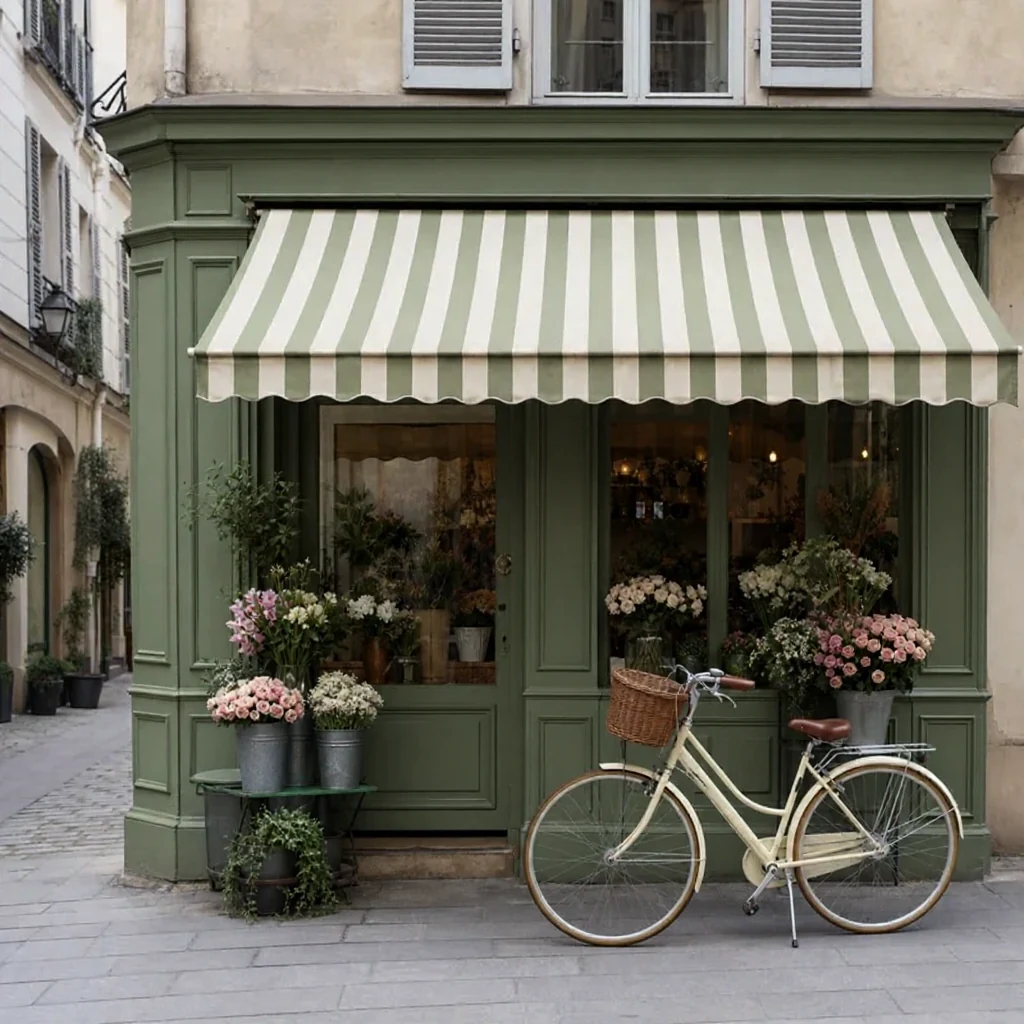
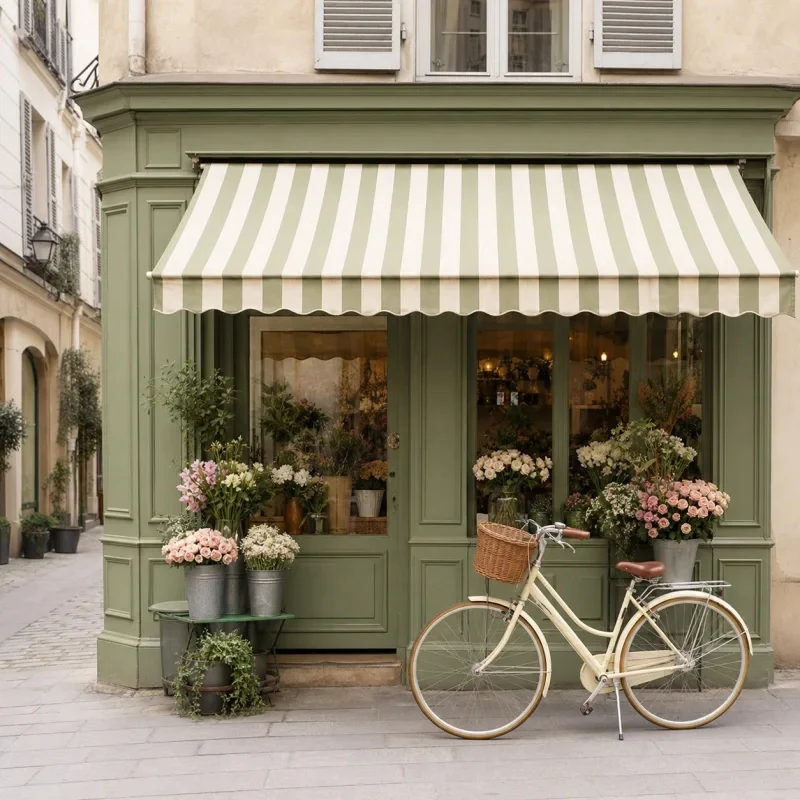
Real AI lighting edit of a flower shop and bicycle
BeforeAfter
Lighting example: drag the divider to compare the original and edited photo.

Edit your photo, your way

Upload a photo, choose your edit, then generate.

JPG, PNG or WebP · up to 10 MB / 12 MP

Shared free allowance

Credits are used when you select Generate. Download your result at no extra cost.

Transparency options

AI needs a solid background. Local PNG and WebP edits preserve transparency.

01 · Same input, actual AI output

See a Real Photo Editor Result

Actual flower shop lighting edit from the same input, with changed scene details
OriginalAI result
Before & after

Warmer light in a flower shop

Drag the divider to compare the lighting, colors and details. Describe one change at a time, then continue editing the result to get the look you want.

Input
800 × 800 px
Output
1024 × 1024 px
Download
PNG, JPEG or WebP
Next step
Keep editing

Check important details such as faces, lettering and product features before using an AI edit.

02 · Upload → describe → generate

How to Use the Photo Editor in Three Steps

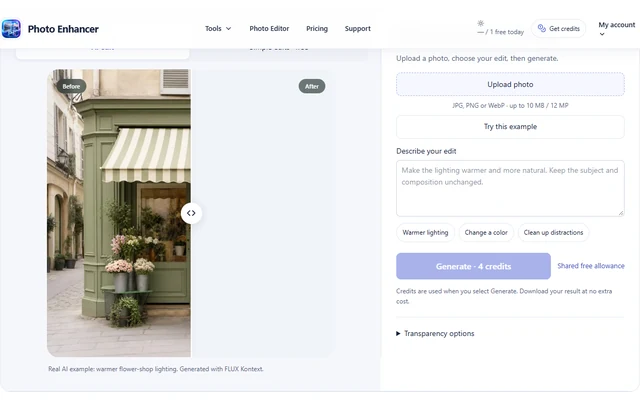
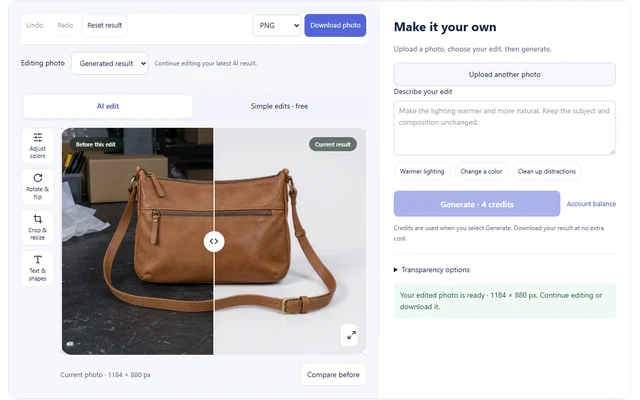
  1. Photo Editor interface: Upload a photo
    Upload a photo

    Upload your photo

    Open a static JPG, PNG or WebP and check its displayed size. Start with a local crop or adjustment if that already solves the job. Keep the original file as your reference.

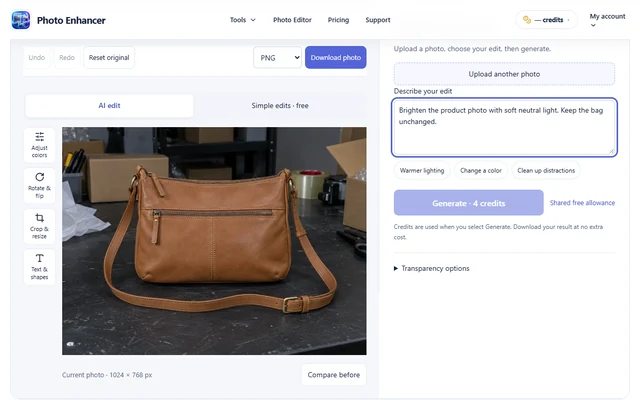
  2. Photo Editor interface: Describe a change and check its cost
    Describe a change and check its cost

    Describe one change

    For AI editing, enter a specific instruction and review the cost shown on Generate. A clear request names the object or lighting change, instead of combining several unrelated transformations in one prompt.

  3. Photo Editor interface: Compare, continue editing and download
    Compare, continue editing and download

    Generate, then keep editing

    The result returns to the canvas. Compare it with the original, make local finishing changes and download. You can continue with another instruction when needed; each new AI generation uses its displayed cost.

03 · Concrete workflows

A Photo Editor for the Small Jobs You Actually Have

Compare the same input with the returned result. These demonstrations show distinct tasks, including details that still need inspection.

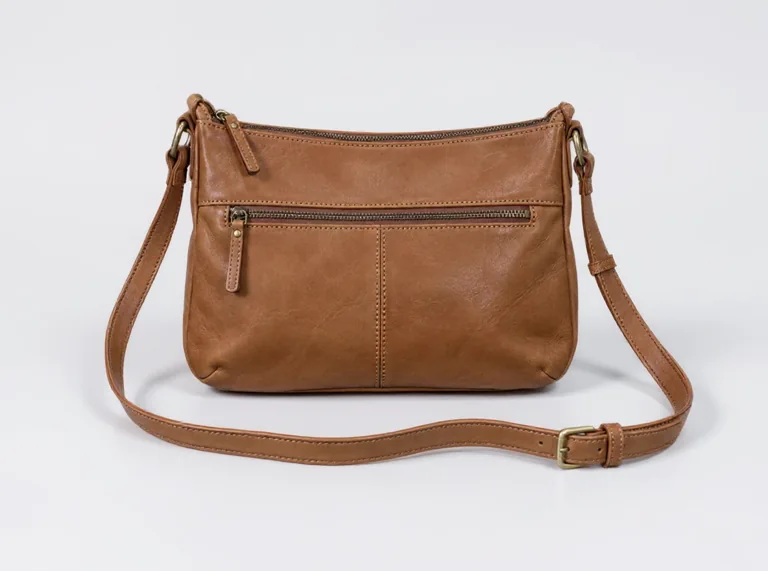
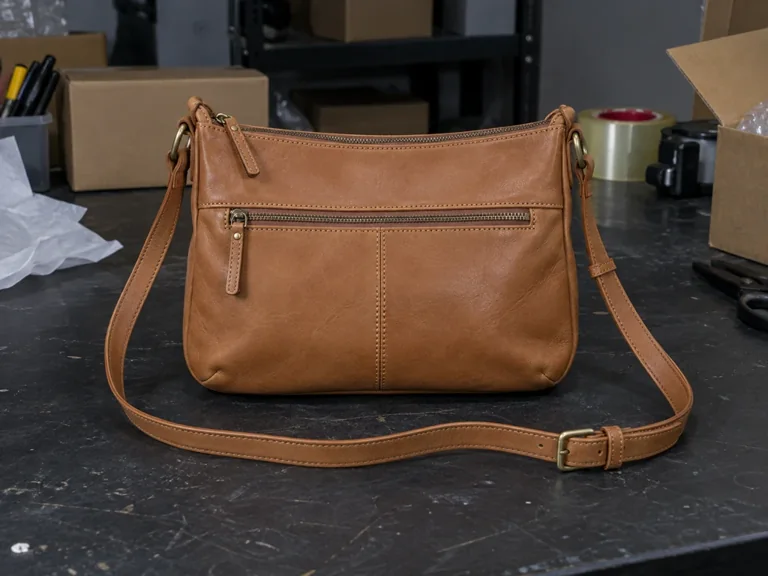
Same-source handbag product photograph before and after an AI lighting edit
OriginalAI edit

A product listing with clearer lighting

A dim product photograph makes the material and silhouette harder to judge. A seller needs readable lighting while keeping the item recognizable.

Try this
Describe a restrained lighting change. Compare the returned item with the source before using it in a listing; use local brightness first when that is sufficient.
Check the result
Inspect the strap, stitching, hardware and material color. AI can change product details, so retain the source as the condition reference.
Example instruction

Brighten the product photo with soft neutral light so the leather texture is clearly visible. Keep the handbag, seams, buckles and composition unchanged.
Edit your own photo →
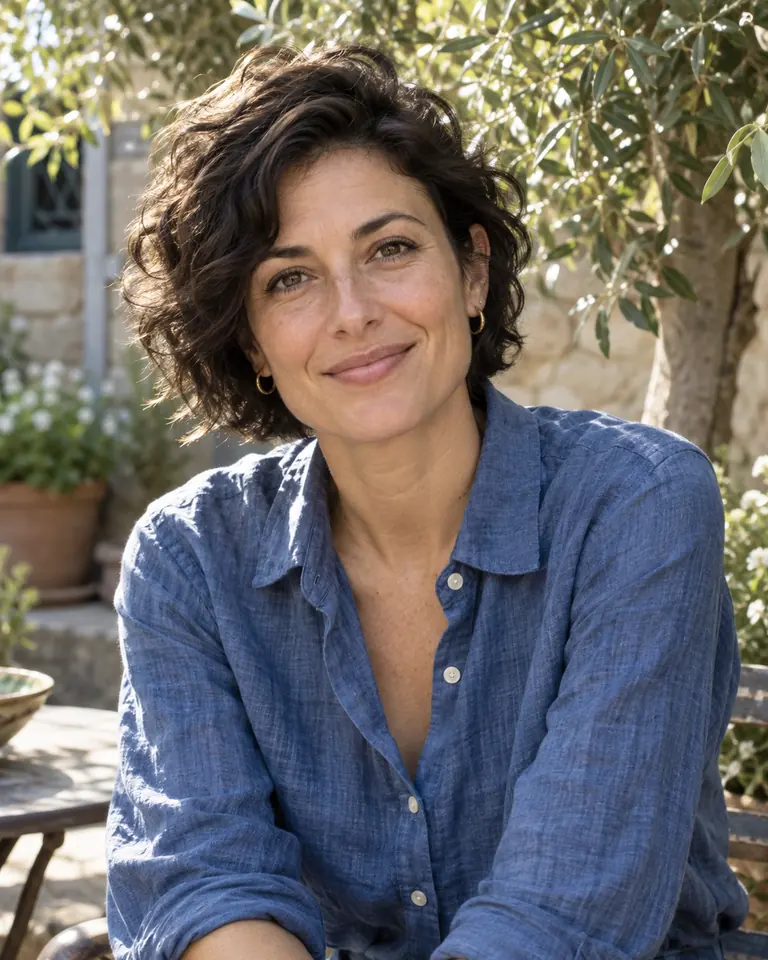
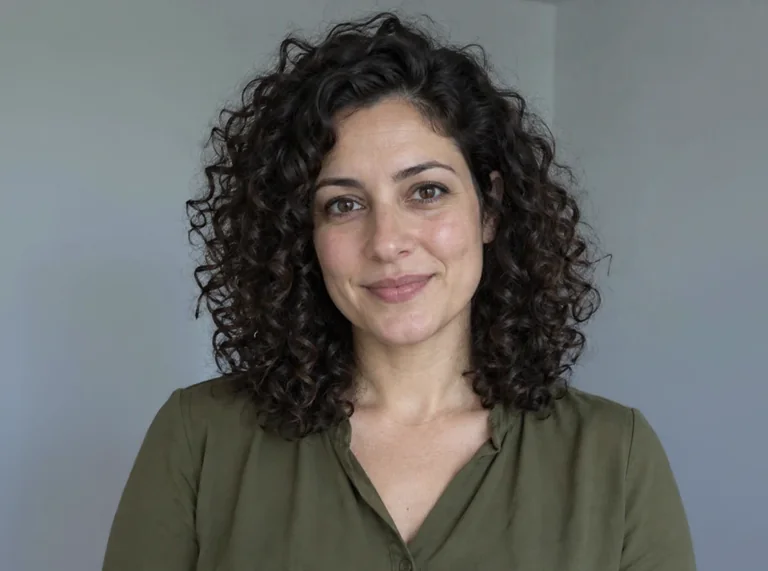
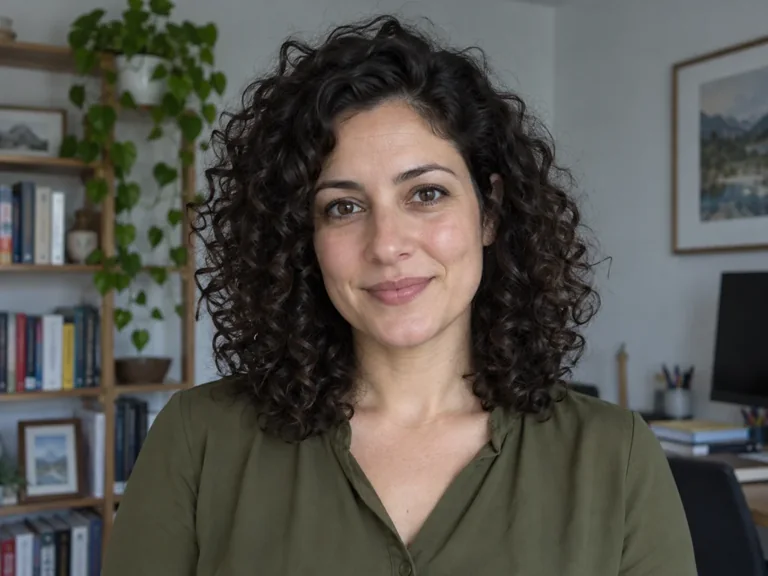
Same-source curly-haired portrait compared with its returned AI lighting edit
OriginalAI edit

Balanced lighting for a profile portrait

Uneven room lighting can distract from a profile photograph. A useful edit improves the presentation without intentionally redesigning the person.

Try this
Request one lighting change, then inspect the face and hair with the comparison divider. Crop locally to match the profile placement.
Check the result
Look at eyes, skin texture, hair and clothing. The instruction is an intention, not a guarantee of identity preservation.
Example instruction

Balance the portrait lighting with soft natural light. Keep the face, hairstyle and clothing unchanged.

Edit your own photo →
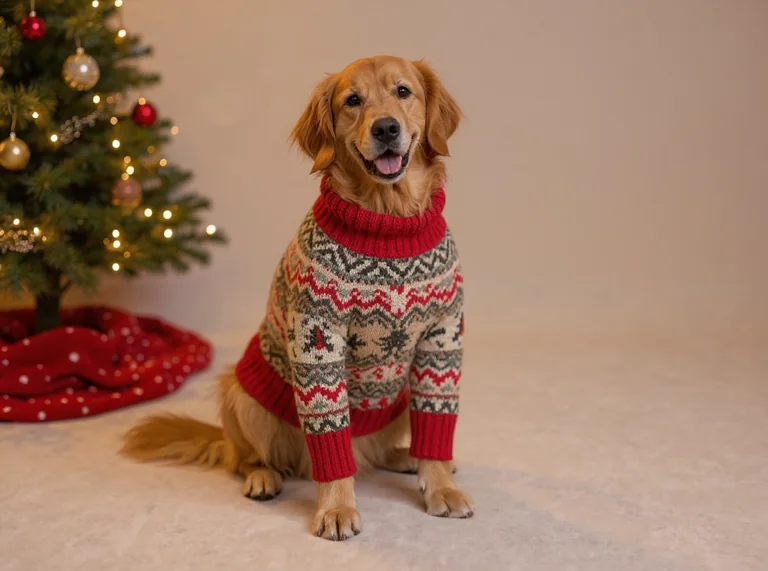
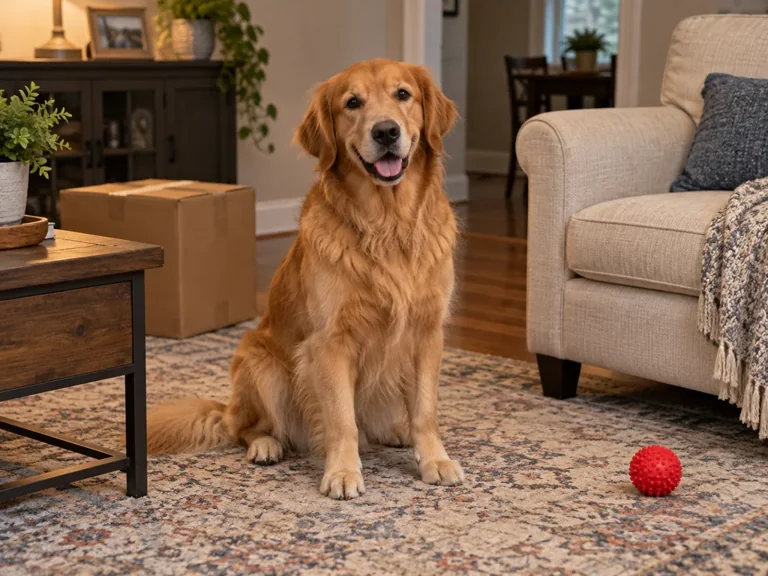
Same-source dog photograph before and after a creative holiday outfit and background edit
OriginalAI edit

A creative pet photo for a holiday card

A personal holiday card may need a seasonal scene rather than a simple color adjustment. This is an intentional creative change to the photograph.

Try this
Describe the outfit and scene. Continue editing the result with a local crop or your own caption; inspect the paws and clothing before downloading.
Check the result
Keep a separate original. Generated clothing and surroundings are fictional, and AI may change fur, anatomy or recognizable details.
Example instruction

Dress the dog in a cozy Christmas knitted sweater and add a simple festive background. Keep the dog recognizable.

Edit your own photo →

Explore these examples, then try the change on your own photo.

04 · Features with a purpose

Photo Editor Controls for Quick Fixes and AI Changes

Local editing · no AI credits

Frame, adjust and explain

  • Crop and rotate. Bring the relevant subject into a useful frame without stretching its proportions.
  • Adjust color. Tune brightness, contrast and saturation for a clearer viewing result, while checking highlights and shadows.
  • Add annotations. Place your own text, arrows or rectangles on the photo to explain a detail directly.
  • Undo and export. Revisit edits and download a copy in PNG, JPG or WebP without a model request.
AI editing · displayed task cost

Describe a content change

Use a text instruction when the change goes beyond existing-pixel adjustments: a different object color or a warmer scene, for example. This uses the processing service and produces a new image that may also alter unintended details.

In the photo editor, basic tools give direct control over framing and labels; AI gives a generated interpretation of an instruction. Neither replaces the other. Check the returned dimensions and visible result rather than assuming the output preserves every original pixel.

05 · Finishing your photo

What should I check after using the photo editor?

Keep the details that matter

A useful edit should match the purpose of the photo. For a product listing, compare material color, stitching and small hardware with the original. For a portrait, look at the eyes, hair and skin texture. For a holiday card, check the clothing, paws and background before sharing.

Use the original/result selector to return to your original without losing the edits on your generated result. Work on a copy when the photo documents a condition, label or other factual detail. A brighter or cleaner-looking result can still change something important.

Choose the right final touch

Use free local tools when you need an exact crop, rotation, brightness adjustment or a label. Use AI when you want to change the photo's content or overall look. A focused instruction is easier to assess than several unrelated changes in one request.

Before downloading, check the displayed size and choose a format for the destination. The W3C PNG specification defines an optional alpha channel: PNG can retain transparency, while JPEG uses a solid background. Keep an editable copy so you can make another adjustment later.

Questions before you upload

Photo Editor Questions

Can I edit the original photo or the AI-generated result?

Yes. The photo editor lets you choose Original photo or Generated result under Editing photo. Each retains its own applied edits and undo history while this editor remains open. Downloads and new AI requests use the selected photo. Uploading another photo starts a new editing session.

Is this photo editor free?

Basic cropping, rotating, color adjustments, annotations and downloads run locally without AI credit charges. AI changes use the amount shown on Generate and can use an available shared trial allowance. The Generate button shows the cost for your next request; your available allowance or account balance determines whether it can start. Free AI processing is limited.

Can I use this photo editor without signing up?

Yes, basic editing and downloads do not require an account. Eligible AI requests can use the available guest allowance. If that allowance is insufficient, the tool offers account access before a new generation. Opening a photo or downloading local edits does not require buying a subscription.

How do I edit a photo with AI?

Upload a supported image, describe one change and press Generate after reading its displayed cost. The returned image appears on the canvas, where you can compare it and continue editing. Each new generation is another processing request; changing a local slider, adding a label or downloading a completed result is not.

Can AI change my photo without changing the face or text?

Exact preservation is not guaranteed. Even a narrow instruction can change nearby lettering, facial features, object shapes or framing. Our shop example demonstrates that limitation. Check important details against the original. For text you create yourself, use local annotations instead of asking AI to render exact words.

Can I crop and resize a photo without AI?

Yes. Use the local editing controls for framing, rotation and smaller output dimensions. Cropping removes part of the image, while resizing changes its pixel dimensions. Neither operation reconstructs missing detail. Use the separate image upscaler when the intended task is AI enlargement rather than simply making a smaller file.

Which formats can I download?

The photo editor exports PNG, JPG and WebP, subject to browser support. PNG and WebP can retain transparency. JPG needs a solid background. Check the selected output size before downloading, especially after cropping or an AI request, because the returned AI dimensions can differ from those of the uploaded image.

Are my photos uploaded, and what happens if AI fails?

Basic editing stays on this device. Starting AI processing uploads the applied photo for server-side and provider processing. A confirmed technical failure before a usable result releases reserved credits through the task system. A delivered result is a completed request. Keep your original, review the privacy policy and download work you want to retain.

Try the Photo Editor on Your Next Photo

Make basic changes locally, or describe a change for AI. Your next step is the tool above.

Open photo editor