Photo Enhancer logoPhoto Enhancer
— / 8 credits todayGet credits

ERASE PEOPLE AND OBJECTS WITH AI

Remove Person From Photo
Brush away people and objects.

Brush over the tourist, stranger or clutter that spoiled your shot. Cover the entire object, including its shadow, to give the AI a clear area to erase and rebuild.

EXAMPLE BEFORE & AFTER
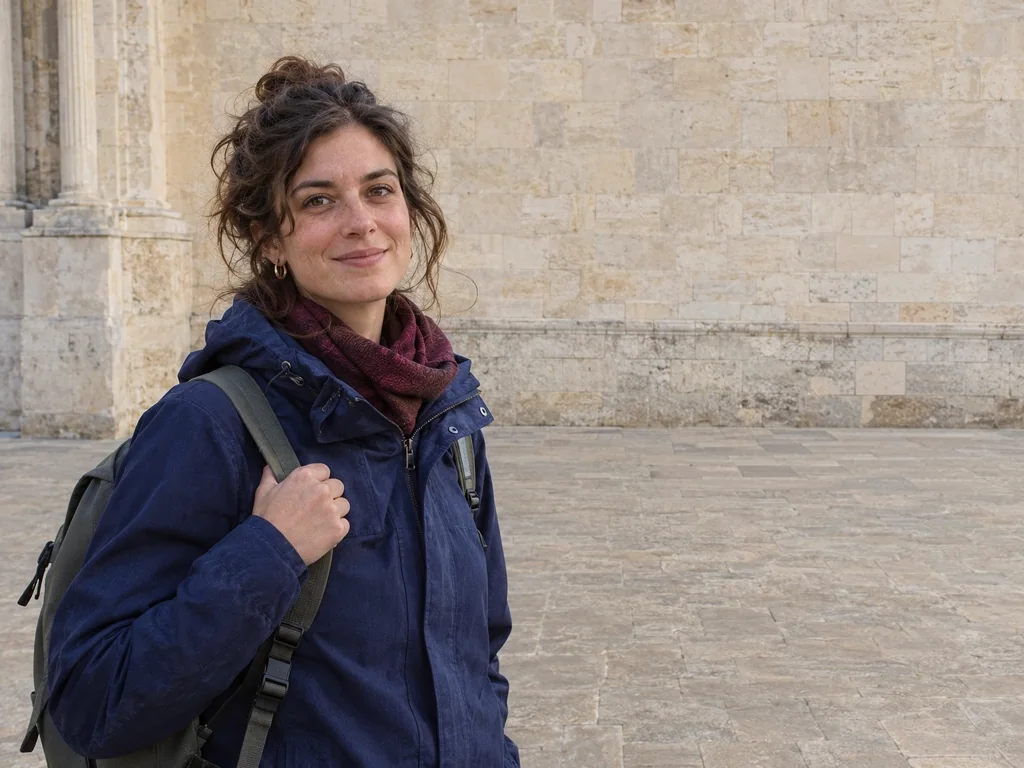
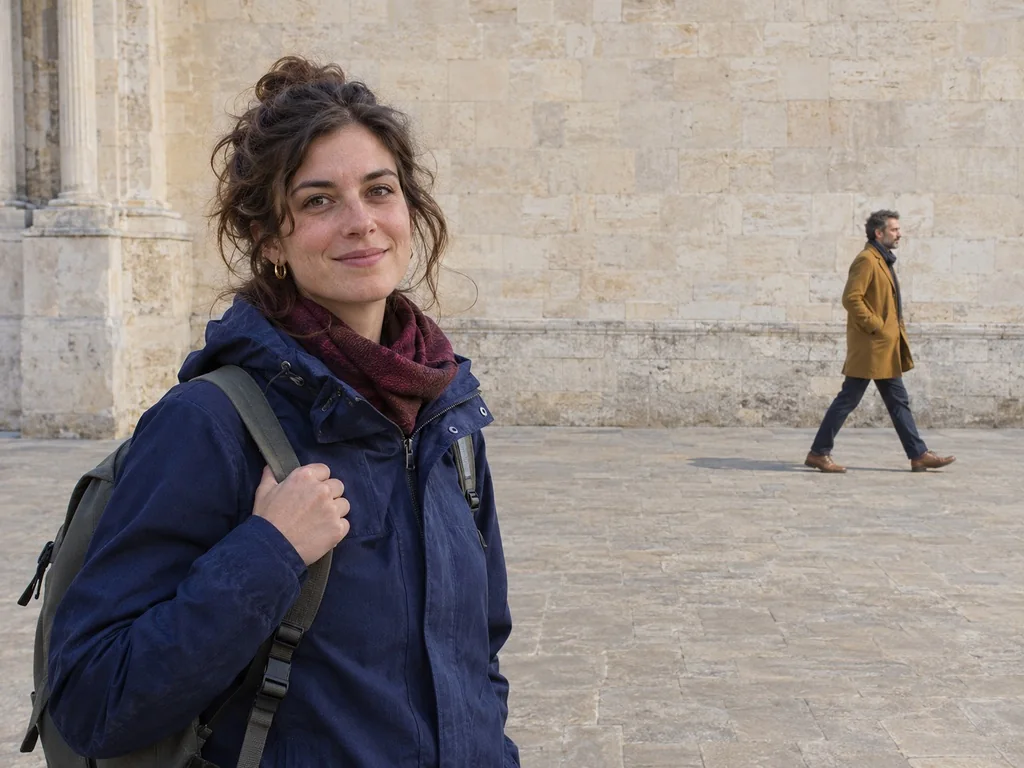
A street photo before and after a passer-by was brushed away
BeforeAfter

Removal example · drag the divider to inspect the rebuilt background.

BRUSH. REMOVE. DONE.
or drop a photo here

JPG · PNG · WebP · up to 10 MB

— shared free credits available

Remove Person From Photo is a brush-based AI object remover: paint over the tourist, stranger or ex who walked into your shot, and the marked area is erased and rebuilt from the surrounding background — no Photoshop, no app install. The brush guides where the model works, with a small margin to blend the edges. Shared daily credits cover anonymous use, downloads carry no watermark, and the tool runs in any modern browser. Crowded scenes where people overlap are harder; inspect the rebuilt area before download. Use the image upscaler for more pixels or the photo editor for a crop or caption.

01 · The problem, in one paragraph

Why removing one person rescues the whole photo

Good photos, ruined by the wrong bystander

The most common version is travel: you get the angle, the light and the timing right at a landmark, and strangers fill the background anyway. The same thing happens at weddings, street portraits and family gatherings — one extra person turns a keeper into a photo you never share.

Until now the fixes were poor neighbours of each other. The eraser built into some phones is tied to that phone — or moved behind a subscription — and often smears large areas instead of removing them. Photopea and Photoshop can do it, but learning clone stamping for one holiday snap is overkill. And many online removers greet you with a signup wall, a watermark or a trial that quietly bills monthly.
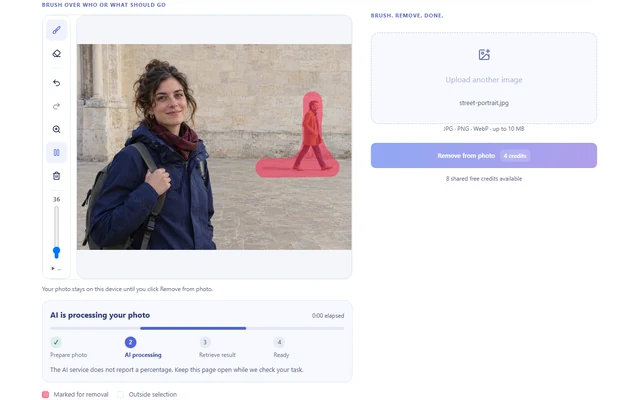
What the brush changes

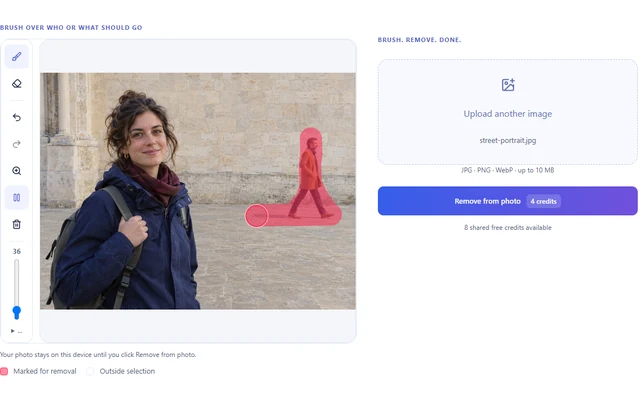
You already know exactly who should not be in the picture. A brush says it in two seconds — no lasso precision required, no instruction to write, no layers to manage. Cover the person and their shadow; the AI erases the marked pixels and continues the pavement, wall or grass that was behind them.

Keep your marks clear of faces and details you want to keep. Use the before-and-after slider to check the rebuilt area and its edges before downloading.

02 · Same photo, one passer-by gone

See a person removal example

Street photo before and after a passer-by was brushed away and the background rebuilt
OriginalAfter removal
Before & after

A passer-by leaves, the street stays

Drag the divider to inspect the rebuilt pavement and building line. Check how the rebuilt area meets the surrounding photo.

Input
1024 × 768 px
Marking
Passer-by and shadow
Download
PNG, WebP or JPEG
Next step
Remove more, or upscale

AI-generated sample photo with an actual FLUX Pro Erase result. Both images use the same crop for comparison.

03 · Upload → brush → download

How to remove a person from a photo in three steps

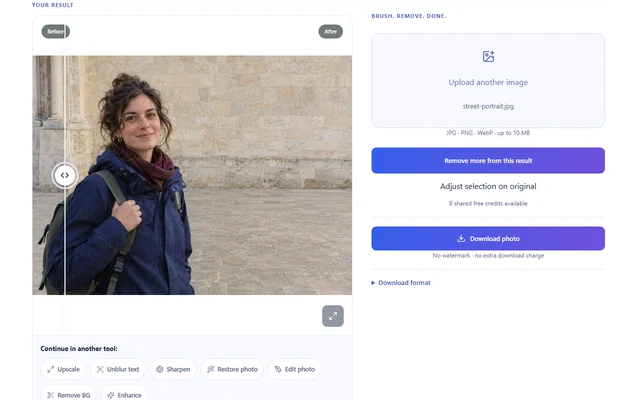
  1. Person & Object Remover interface: Upload a photo and brush over the person
    Upload a photo and brush over the person

    Upload and brush over the person

    Choose a static JPG, PNG or WebP within the displayed limits. Paint over whoever should go — cover the whole person and their shadow. Undo, unmark and re-brush as often as you like; nothing is uploaded until you start the removal.

  2. Person & Object Remover interface: Start the removal and wait for the rebuild
    Start the removal and wait for the rebuild

    Start the removal

    Check the credit cost on the button and start the task. The AI erases the marked pixels and rebuilds the background from the surroundings. Typical tasks finish in seconds to about a minute; keep the page open while it runs.

  3. Person & Object Remover interface: Compare the result and download
    Compare the result and download

    Compare and download

    Drag the before/after divider to check the rebuilt area, especially at 100% zoom. Download the clean PNG — no watermark, no repeat charge. Need a second person gone? Continue with the result instead of starting over.

04 · What the tool promises — and what it doesn't

Free, online, no signup, no watermark

Free daily use

A shared daily credit allowance funds removals without an account — every removal costs the same flat price, the balance is shown before you start, and it resets at midnight UTC. There is no trial that turns into a subscription.

Online — nothing to install

The remover is a web page, not an app-store download. It runs wherever your photos already are: phone, tablet or desktop browser.

No signup to start

Upload, brush and remove before you are ever asked for an email address. Signing in only matters later, for account credits and task history.

No watermark

Downloads are the clean result image at its delivered resolution. Repeat downloads and format changes cost nothing extra.

05 · From travel shots to wedding photos

Real situations where a brush beats an edit

Compare the same input with the returned result. These demonstrations show distinct tasks, including details that still need inspection.

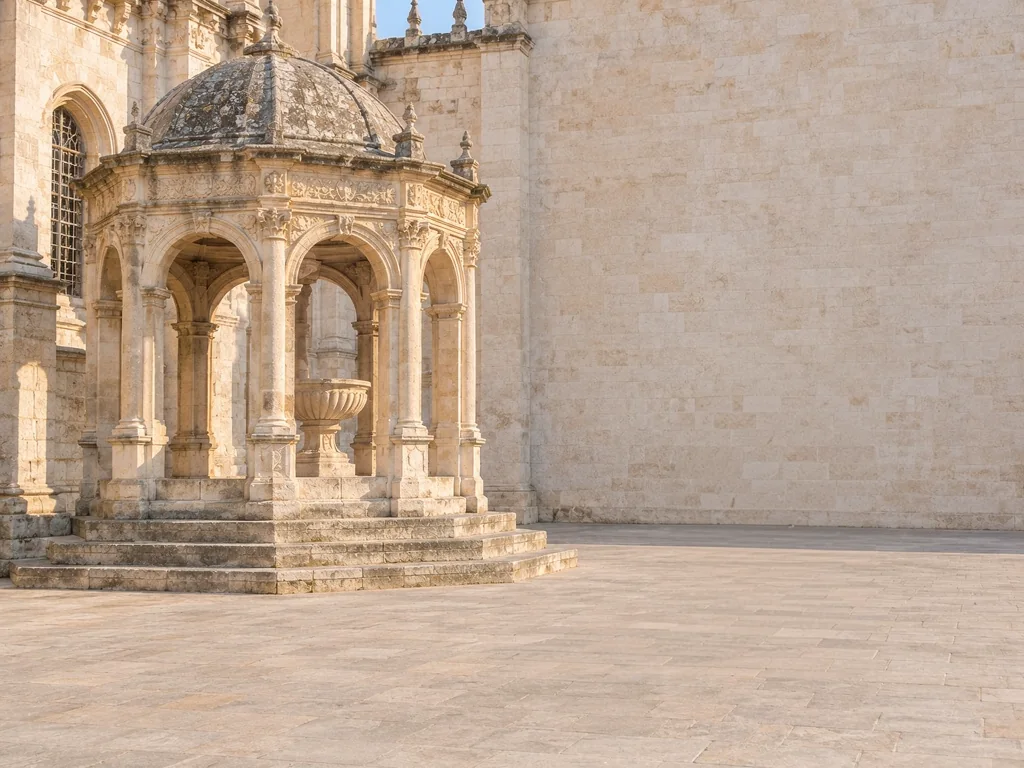
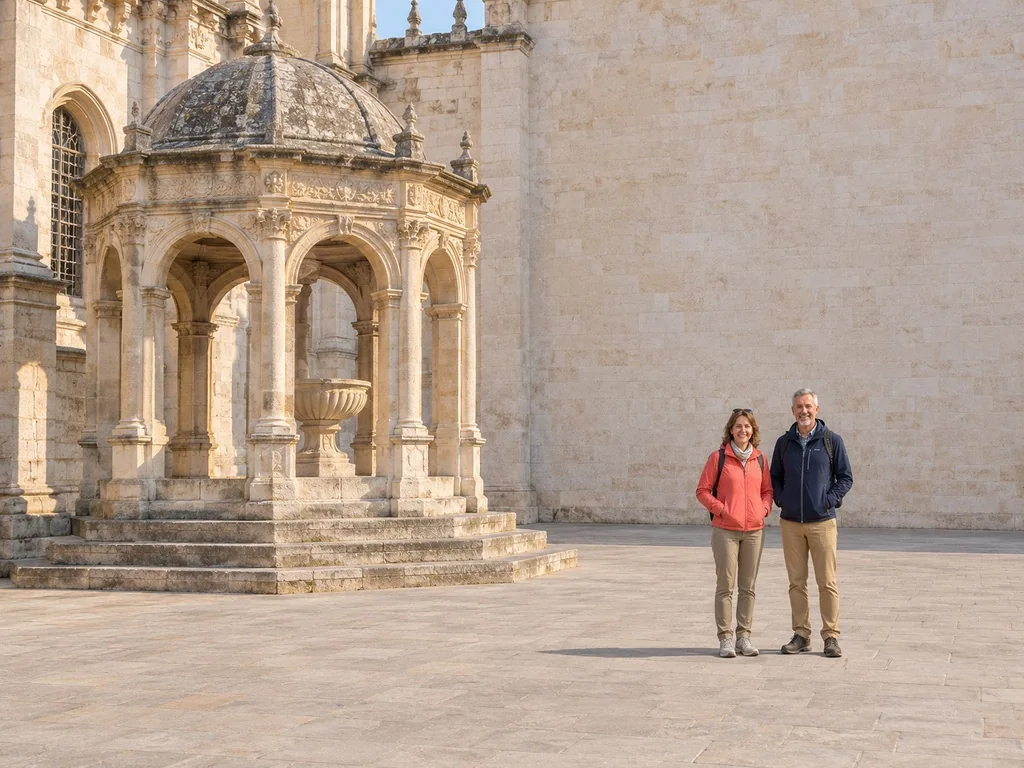
Landmark travel photo compared before and after two tourists were brushed away
OriginalAfter removal

Tourists out of a landmark shot

You waited for the right light at the archway, but two visitors stood right in the frame. The shot is right; the people in it are not.

Try this
Mark both tourists and the shadows they cast on the pavement in one task.
Check the result
Look at the wall and pavement where they stood: lines and texture should continue through. This is a real eraser output on a synthetic scene — inspect it at 100%.
Remove someone from your photo →
Wedding photo compared before and after one guest was brushed away by the eraser
OriginalAfter removal

A guest out of a family wedding photo

An extra guest stands apart from the couple in a portrait you want to print.

Try this
Brush over the guest from head to shoes and include the shadow on the lawn. Leave a gap around the couple.
Check the result
Check where the hedge meets the lawn, and inspect the couple at full size before printing.
Remove someone from your photo →
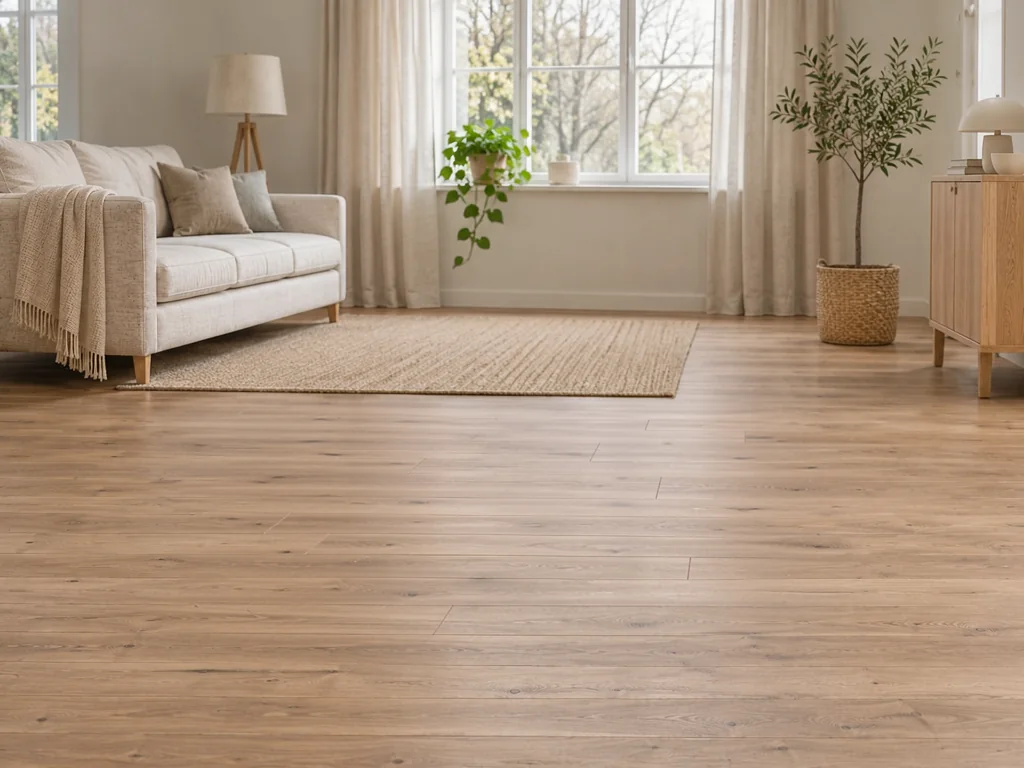
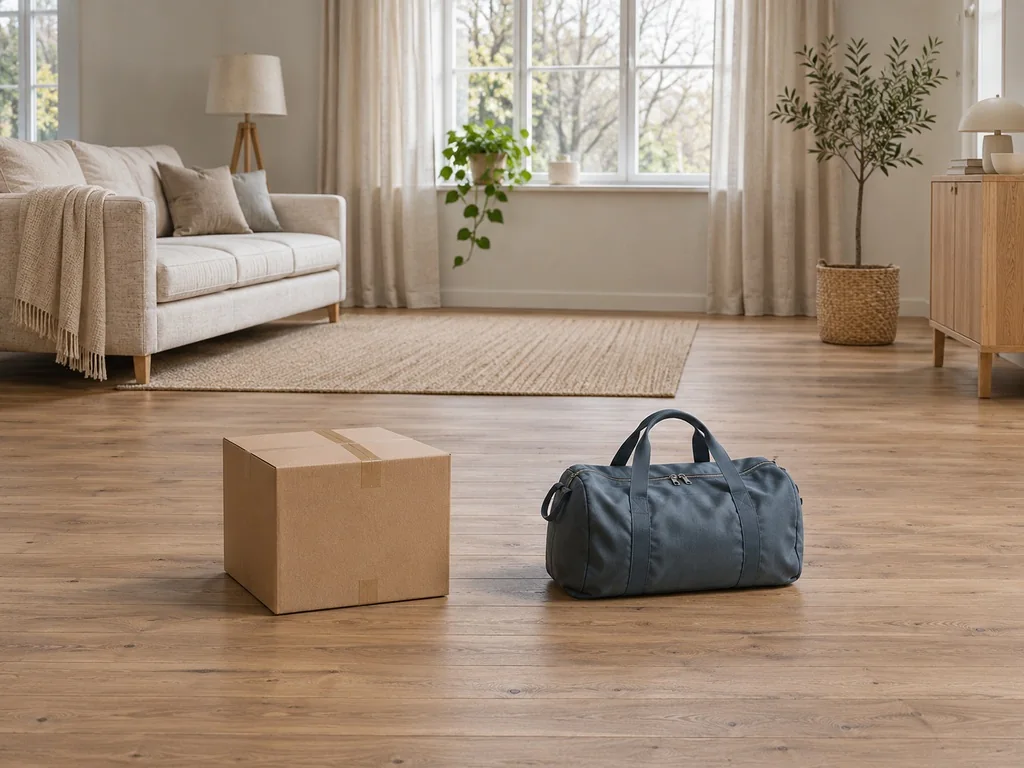
Living room before and after removing a cardboard box and blue duffel bag
OriginalAfter removal

A box and bag out of the living room

You photographed the room for a listing or a family album, and the delivery boxes and a bag on the floor undo the tidiness in seconds.

Try this
Mark the cardboard box and the blue bag, including their shadows, in one removal.
Check the result
Look at the floor where the boxes stood: plank lines and shadows should continue in the same direction. This is a real pipeline output on a synthetic scene — inspect it at 100%.
Remove someone from your photo →
Street portrait compared before and after a background passer-by was removed
OriginalAfter removal

A passer-by out of a street portrait

A candid portrait is composed exactly how you wanted it — except a pedestrian crossed the background at the decisive moment.

Try this
Mark the passer-by and his shadow. Keep the brush clear of the subject in the foreground.
Check the result
Toggle between the original and the result: the subject should be unchanged, and the street behind them should continue naturally.
Remove someone from your photo →
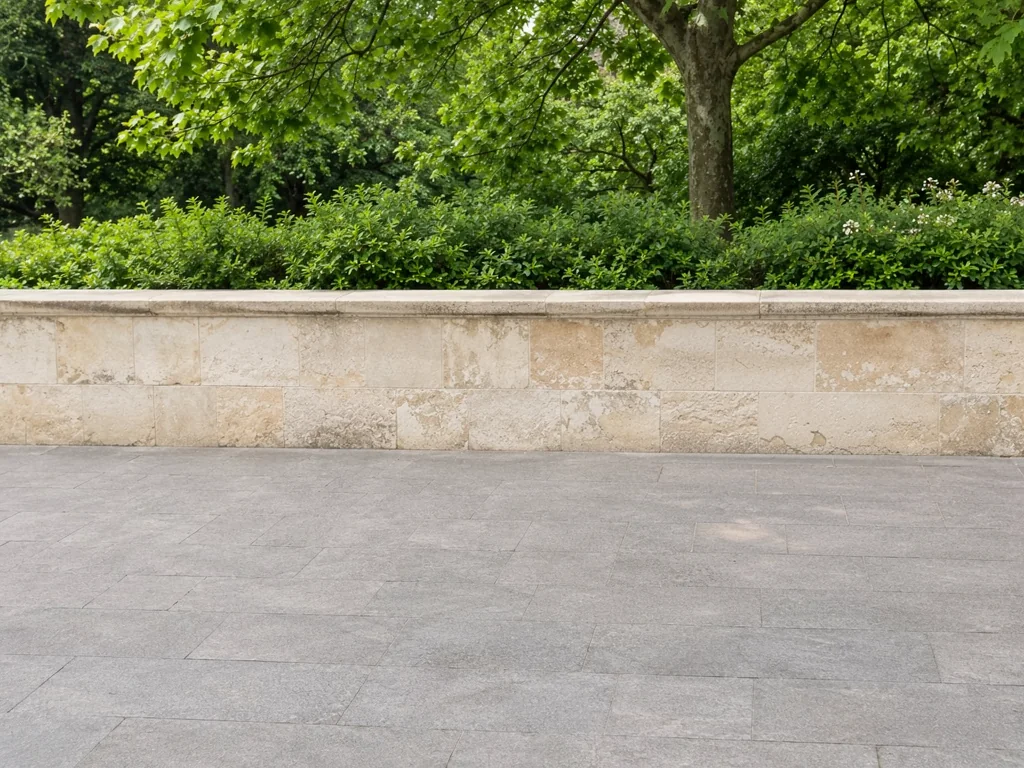
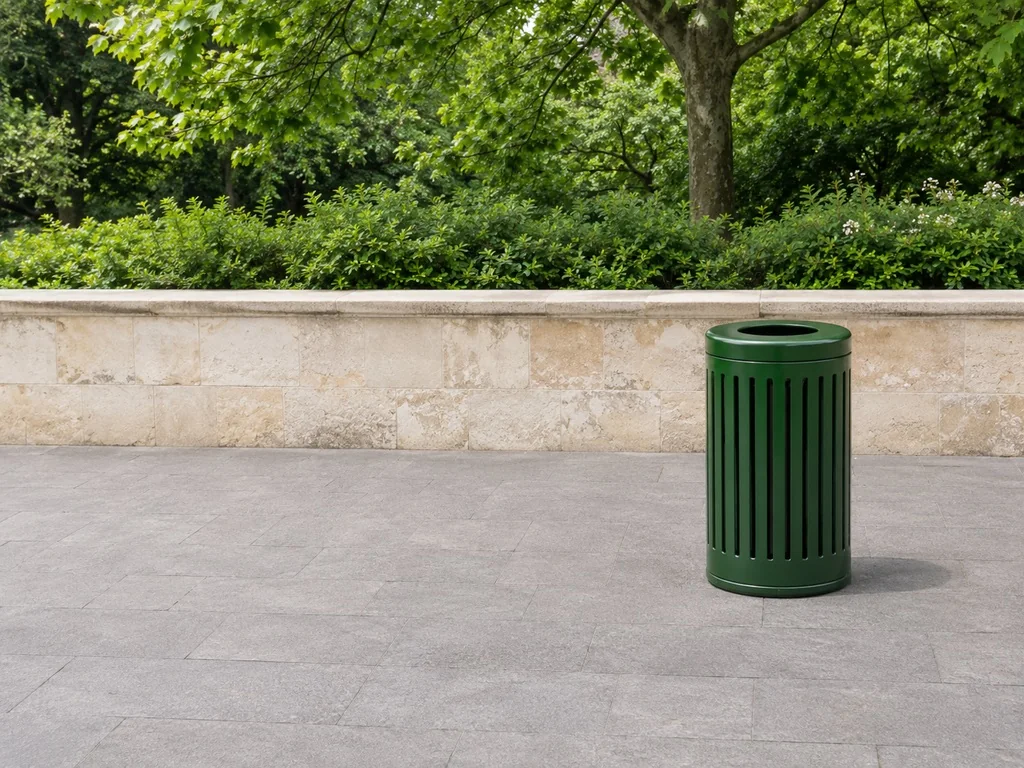
Everyday photo compared before and after pavement clutter was erased
OriginalAfter removal

Objects and clutter off the pavement

Sometimes the intruder is not a person at all: a trash bin, a cable, a chair or a bag that pulls attention away from the subject.

Try this
The same brush marks objects for removal. Paint each item and its shadow, then check the rebuilt background and nearby details in the result.
Check the result
Follow straight lines and shadow directions in the rebuilt area — a believable continuation of edges is the sign of a clean removal.
Remove someone from your photo →

Explore these examples, then try the change on your own photo.

06 · Honest limits before you spend credits

When removing a person works well — and when it doesn't

Where results come out clean

Removal reconstructs the background from what surrounds the marked area, so it shines against regular, predictable scenes: pavement, walls, sky, water, grass, empty interiors. A single passer-by with a clear outline is the sweet spot — brush, remove, done.

Keep your subject out of the marks. Because only painted pixels are repainted, faces and details you never touch keep their original sharpness — compare the two halves of the slider to confirm it.

Where you should lower your expectations

When people overlap — linked arms in a crowded group photo — the model has to invent what connects the remaining bodies, and the seam can show. Reflective surfaces, patterned floors and tiny slices of hidden background are the hardest cases; a second, tighter pass often beats one big generous stroke.

The rebuilt area is an AI reconstruction, not the pixels the camera originally recorded there. For listings, news or anything evidential, disclose the edit — and only edit photos you have the right to edit.

LIMITS & PRICING

Usage limits at a glance

One removal is one AI task; brushing, unmarking and repeated downloads afterwards are free.

Upload formatsJPG, PNG, WebP
Max input size10 MB and 2048 px / 4 megapixels for every account (displayed before upload)
Cost per run4 credits per removal, the same for any size
Free useGuests share 8 free credits per day, no account needed — covering up to two removals
Output sizePNG result; the rendered dimensions are shown with the task
WatermarkNone, on every download
SelectionThe brush marks what to remove. Include shadows and reflections you want removed.
Processing timeTypically seconds to about a minute per image

Credit costs and limits are shown before every run and govern processing; prices reflect the current configuration.

Remove an Object From a Photo Online

One object remover for people and things

An unwanted person and an unwanted trash bin are the same problem for this tool: pixels that should become background. That is why the brush does not ask what you are erasing — paint a stranger, a sign, a cable or a photobombing seagull, and the removal rebuilds the scene behind it. Photo cleaner workflows often boil down to exactly this: delete the distraction, keep the photograph.

Include the object and its shadow

Generous marks include the object's shadow, which is usually part of what gives it away. Keep marks off details you want to keep. If the result has an artifact, adjust the selection on the original. If the result looks good and you want to remove something else, continue with the result.

Remove Someone From a Picture on Any Device

A magic-eraser workflow without the lock-in

Phone makers ship object erasers that only exist on their newest models, or moved them behind a subscription, which is why "remove someone from a picture" searches spike every holiday season. This page is the workaround: the same tap-and-erase experience as a browser tool, on the device you already carry — iPhone, Android, Windows or Mac.

Touch-sized brushing on phones

Painting works with a finger: the brush slider, undo and mode buttons are sized for touch, and the canvas zoom lets you check fine details before paying for the task. When the photo lives on a computer, the same page takes mouse and keyboard input — including position-by-percentage brushing for precise edits.

Questions before you upload

Remove Person From Photo — Questions

Is this person remover free?

Eligible guests can use the shared daily credits to remove a person without creating an account — the workspace shows the remaining balance before you start. Every removal costs the same flat 4 credits regardless of photo size. Daily credits reset at midnight UTC and do not roll over; daily and lifetime limits apply. Signed-in tasks draw on account credits. Painting, unmarking, undo and the before/after comparison are free — only the removal itself is an AI task.

Do I need to sign up or install anything?

No. The remover runs in your browser — there is no app to install and no account needed to start. Open the page, upload a photo and brush over whoever should not be in it. Signing in is only for account credits and task history.

Does the download have a watermark?

No. Every download is the clean result image with no watermark and no extra charge for repeated downloads. You can re-download in PNG, WebP or JPEG as often as you like after a task.

Can I remove an object from a photo, not just a person?

Yes — the brush does not distinguish. Paint over a trash bin, a cable, a sign, a parked car or any clutter and the removal rebuilds the background behind it the same way it does for a person. Marking and unmarking work identically for objects.

How good is the background after the person is removed?

The eraser uses your brush marks and surrounding pixels to rebuild the selected area. Cover the whole subject and any shadow or reflection you want removed. A small margin blends the edges, and details near the selection can change. When people overlap or the background is complex, inspect the result at full size and adjust the selection on the original if needed.

Does it work on iPhone, Android and desktop?

Yes. The tool is a web page, so it runs in any modern browser on a phone, tablet or computer — nothing is locked to one phone brand or subscription. On a phone, paint with your finger; the brush size and undo controls are touch-sized.

What happens to my photo after I upload it?

The image is uploaded for server-side processing because the removal model does not run in the browser. Files are kept only briefly — up to 24 hours for guests and 7 days when signed in — and you should keep your own copy. Only edit photos you have the right to edit, and remember that removing a person from a photo changes what the camera recorded.

What can I upload, and what do I get back?

Upload a JPG, PNG or WebP up to 10 MB. Removals accept inputs up to 2048 px and 4 megapixels on every account — the workspace shows the limit before you start and can prepare a smaller copy when a photo exceeds it. The result is delivered as a PNG; its rendered dimensions are shown with the task. Removal does not add pixels to a small photo — continue with the image upscaler when you need a larger file.

Brush Them Out of Your Own Photo

Upload a photo, paint over whoever shouldn't be there and download the cleaned result.

Open the remover