
For the everyday moments
Soft phone photos of meals, gifts and daily moments gain back crisp edges and natural texture. General mode is the balanced default: it re-renders fine detail while keeping the original composition and colors you remember.
 Photo Enhancer
YOUR PHOTOS, CLEARER
Make soft photos clearer, refine facial details and sharpen everyday images with AI. Choose a scene, compare the result, and download in JPG, PNG or WebP — no software installation.

Balanced refinement for everyday photos. Face refinement is used only when a face is detected; choose Portrait for dedicated facial work.
Upload your photo, choose a scene below the preview, then enhance and download.
Automatic 2× enhancement. Large photos are prepared to fit the output limit; actual dimensions are shown before processing.
Checking processing cost…
Photo Enhancer is a free-to-start online tool that sharpens blurry photos, refines faces and detail, and exports JPG, PNG or WebP — no install needed, and guests can try one enhancement a day without an account. It works best when the original still holds recognizable edges: mild blur, soft focus and compression noise recover well, while heavily smeared detail cannot be fully reconstructed. Compare the before and after on the page before you download.
01 / How it works
Choose a JPG, PNG or WebP from your device. The file is checked and a supported size is prepared. Large photos may be resized to match the output limit shown in the tool; the original on your device is never overwritten.
Choose General, Portrait, Object, Landscape, Pet or Text to guide the AI. Each scene carries a dedicated prompt — pets get fur and eye recovery, text gets character-protecting sharpening. The credit cost is shown before you start; sign in to use your balance.
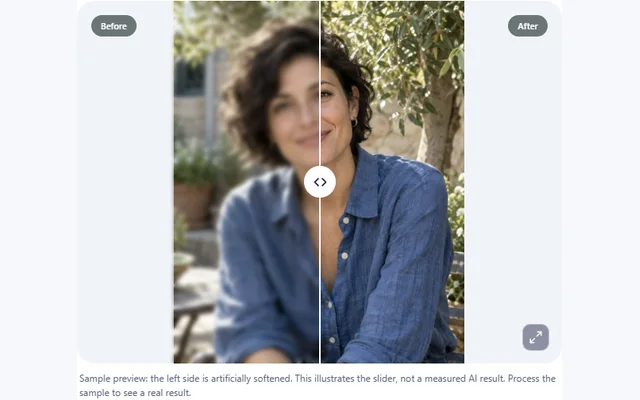
Move the divider across the actual input and result. Look at eyes, product edges and fine textures, not just the overall impression. Download the version you prefer in PNG, JPG or WebP. A good tool helps you judge the result, rather than asking you to accept it unseen.
02 / Examples
These original, AI-created sample photographs are for exploring the tool. Live results depend on your input and the selected model.
Soft phone photos of meals, gifts and daily moments gain back crisp edges and natural texture. General mode is the balanced default: it re-renders fine detail while keeping the original composition and colors you remember.
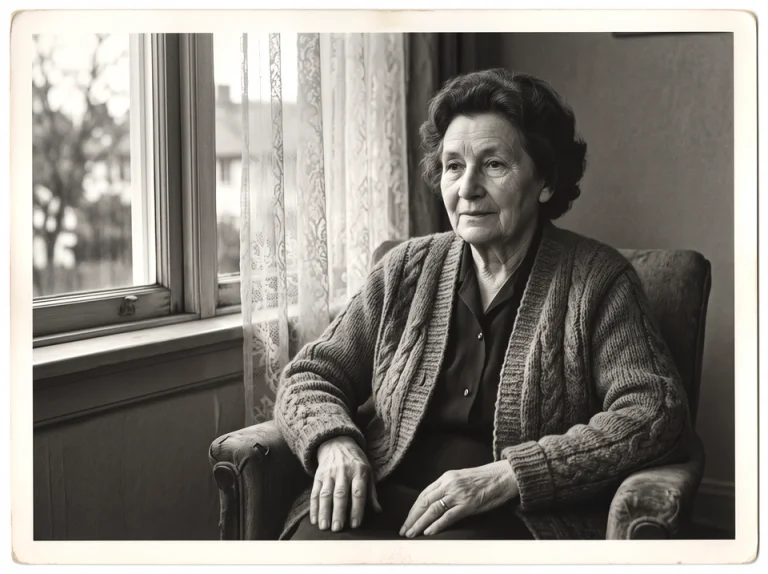
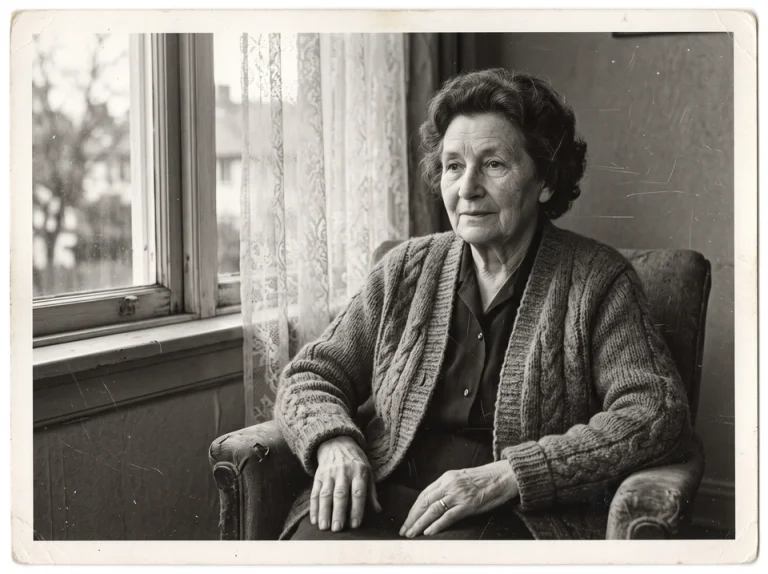
Try natural enhancement for soft portraits, then compare the eyes, hair and skin. Portrait mode enables face refinement. It can still alter facial details, so judge the actual result rather than expecting exact identity preservation.

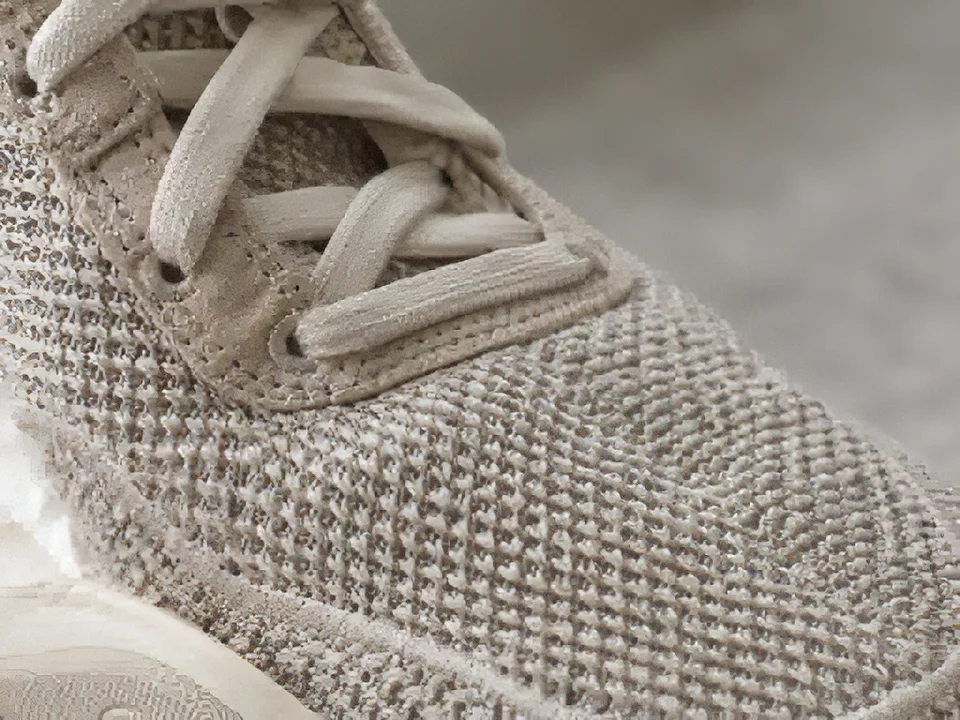
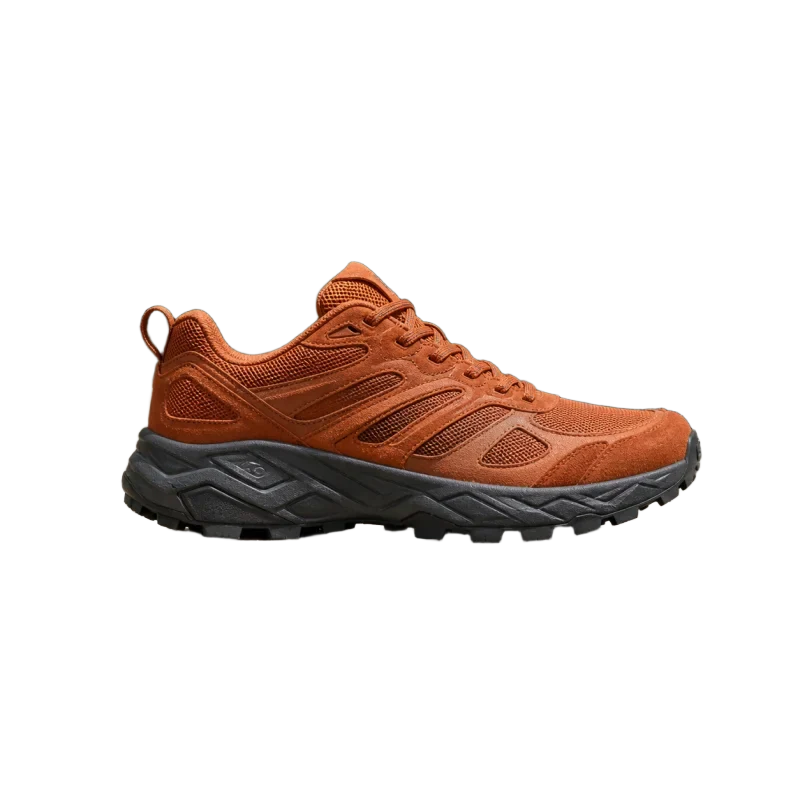
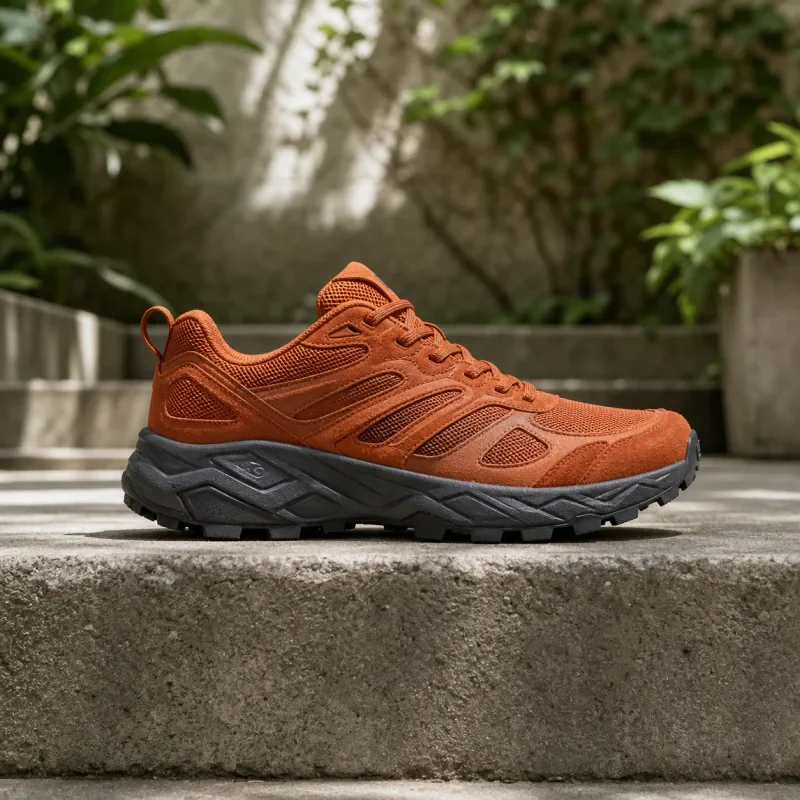
Ceramic glaze, woven fabric and small product edges deserve a closer look. Enhancement can help prepare an existing product photograph for everyday sharing, provided the original has enough visual information. Keep an eye on colors, labels and geometry. Enhancement should not make a product look different from what a customer will actually receive.

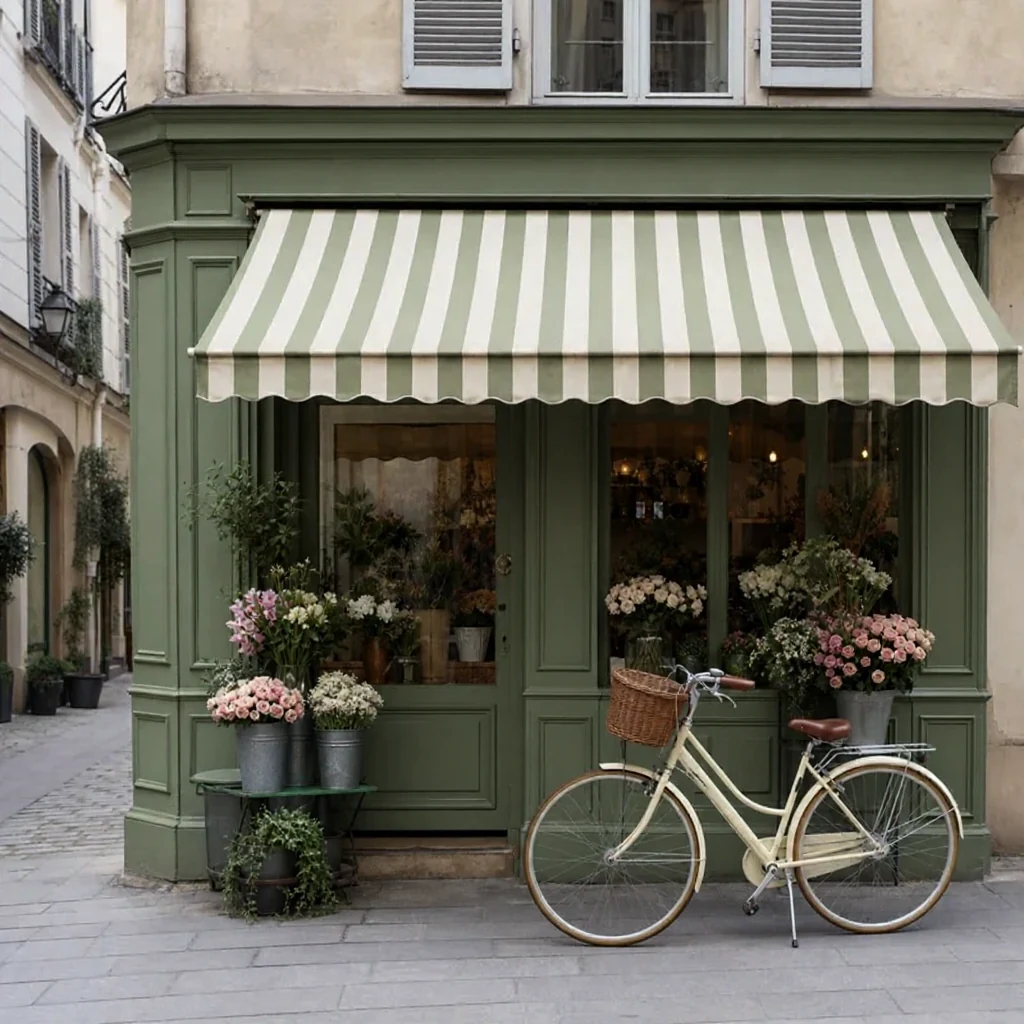
Travel pictures often pass through several apps before you share them. Careful refinement may make recognizable stonework, leaves and roof lines easier to appreciate. It cannot reveal a landscape hidden behind severe blur or recreate missing historical detail with certainty. Compare both versions and keep the one that best represents the memory.
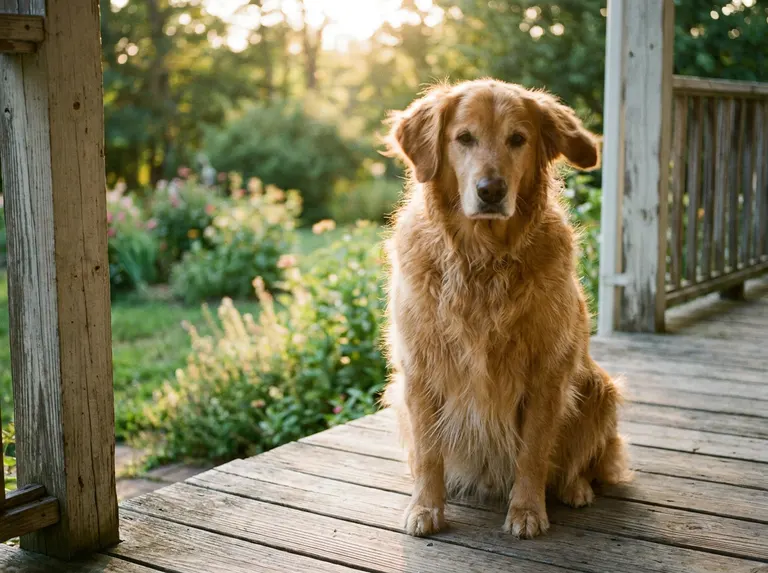
Pet mode rebuilds fur, whiskers and bright eyes without changing the animal markings or pose. Compare the muzzle and ear details closely — the result should still look exactly like your pet, only sharper.

Text mode sharpens handwriting, printed signs and document scans while guarding every character. It cannot recover characters that are unreadable in the source, so always proofread important text after enhancing.
03 / PHOTO ENHANCER
Enhancement is useful when the moment matters more than the camera settings. Start with an image that still contains recognizable detail, then compare the change carefully.
Each of the six scenes routes to dedicated precision settings. Portrait uses facial restoration before a separate upscale with face reconstruction off. Object focuses on the foreground; landscape and pet preserve fine detail; Text uses Text Refine without generative preprocessing. Compare the actual result carefully.
Results are automatically prepared at a supported 2× output. Large files are resized first to fit the free or paid output limit. The quote shows the actual dimensions before processing. Your device original stays unchanged; a larger file does not guarantee better details.
Use PNG when you want a lossless download of the processed result, JPG for familiar photo sharing, or WebP for a smaller modern file. The photo enhancer converts the download in your browser when needed. JPG uses a white background for transparent areas. Download format does not prove that the AI has preserved every original detail.
Your tasks belong to your session or account. Input images are kept temporarily for processing; guest results expire after one day and signed-in results after seven days. A connection problem should not cause a second charge for the same accepted request. Refresh the page to find recent tasks, and delete a completed result when you no longer need it.
WHAT YOU CAN DO
A family portrait, a product listing and a holiday photo need different kinds of attention. Choose the subject that matters, then judge the improvement in the parts of the image you actually want to share.
General is a useful starting point for everyday pictures. Portrait focuses attention on facial detail; Object suits product photos; Landscape and Pet give you a way to approach scenery and fur. Text is for visible lettering. You do not need to write a prompt or learn model settings before trying your first image.
For a family photo, compare eyes and expressions before deciding that a sharper face is a better face.
Soft edges can make a well-composed picture feel unfinished. Enhancement can help give a jacket texture, a product outline or a distant building more definition. The tool prepares a supported 2× output and shows the actual dimensions before processing, so you can see what you will receive rather than guessing from a thumbnail.
Check a product photo at the size customers will see it on the listing, including labels and fine seams.
Move the divider across your own original and the processed result. This makes it easier to notice a useful improvement as well as a change you would rather avoid. You can open the comparison full-screen and review more than one area before downloading, without starting another enhancement just to inspect the result.
On a travel photo, look at the main subject and the background rather than judging only the brightest area.
Choose JPG for everyday photo sharing, PNG when you want to avoid another lossy export, or WebP for a modern web image. Switching the download format does not run enhancement again. If your goal is a specific large display or print size, the dedicated Image Upscaler gives you more direct control over enlargement.
Save a copy for sharing and keep the original file for any future edits.
PRACTICAL CHECKS
Choose the treatment for the problem in your original. More pixels and a cleaner-looking image are different goals; inspect familiar details before keeping an AI result.
| Your starting point | What to use or expect | What to check |
|---|---|---|
| Everyday detail | Standard enhancement | Compare texture and edges at the same display size. |
| A recognizable face | Portrait enhancement | Check eyes, skin and identity; enhancement can estimate details. |
| A small source file | Available enlargement setting | 2× doubles width and height; it creates 4× as many pixels, not 4× proven quality. |
Export reference: the W3C PNG specification describes PNG's optional alpha
channel. PNG can store transparency; that format capability does not guarantee detail recovery or an accurate AI edit.
Content maintained by Photo Enhancer · Reviewed . Contact support.
Soft focus, mild compression artifacts, low contrast and lost edge definition respond best. The AI photo enhancer sharpens existing detail to enhance photo quality across fabric, hair, fur and architecture — all while keeping the identity of the original photograph intact. You can compare every result before downloading.
Severely blurred photos, completely missing sections and extreme low-light shots may not recover convincingly. The enhancer improves what is already visible; it cannot reconstruct detail that was never captured. If your source is unusable, retaking the photo at higher quality will almost always give a better starting point than another processing pass.
EXPLORE MORE
A clearer overall picture is one step. When a specific problem needs its own workflow — a larger size, readable lettering, natural sharpness, an old scan, a quick edit or a cutout — these dedicated tools give you more control over that job.

04 / FAQ
Every visitor gets 8 free credits each day — enough for about 2 free enhancements at the base cost. The allowance resets at midnight UTC and does not accumulate. Sign in to keep going: signed-in accounts run on credits and unlock the larger paid output limits, with every cost shown before processing starts.
No. It works best when recognizable edges and detail remain. Heavy motion blur, compression and missing pixels limit recovery. Even natural enhancement can change fine details. Compare text, faces and product labels carefully, keeping the original as your reference.
Ordinary resizing interpolates pixels. It uses an AI model to refine your image and automatically prepares a supported 2× output. Actual dimensions are shown before processing. Enlargement does not prove new factual detail, and large images must fit the output limit.
Inputs are stored privately for up to 24 hours. Guest results are available for one day; signed-in results for seven days. You can delete completed outputs sooner. Your photos are processed securely and are never shared with other users. See our privacy policy for full details on how uploads are handled.
Every accepted task has a unique ID. Reopening that task does not create another charge. Confirmed failures release the reserved credits or free allowance. If the provider response is uncertain, the task shows that state while it is reconciled; it will not blindly submit another paid request.
A better original is usually the best starting point. Try to obtain the highest-quality source before using any enhancement, avoid repeatedly saving an image as a low-quality JPG, and compare at the size you plan to use. For important work, keep both the untouched file and the selected result.
Everyday blur usually has one of four causes: camera shake at slow shutter speeds, missed focus, low-light noise, or compression from messaging apps and social platforms that re-save your photo. A photo enhancer can re-sharpen edges when the underlying detail survives, but it cannot re-capture a moment that was never recorded sharply — for fast-moving subjects, a faster shutter next time beats any enhancement.
Enhancement reconstructs plausible detail rather than recovering the exact original pixels, so fine texture on an enhanced face can differ slightly from the real person. Standard mode keeps the edits conservative, while creative refinement takes more liberties. Treat an enhanced photo as a restored view, not forensic evidence of what the original pixels showed.
PHOTO ENHANCER
Give it a picture with a little detail left to work with. Choose an image, compare the result, and decide what is worth keeping.